System tray & running the app
On Windows, BlankTrail Proxy runs from the system tray. The tray icon shows status and gives you quick access to the dashboard.
The tray icon
After installation the BlankTrail Proxy icon sits in the Windows notification area. Hovering over it shows the current status — for example "BlankTrail Proxy — 127.0.0.1:8891" once the app is ready, or a short reason if the license needs attention.
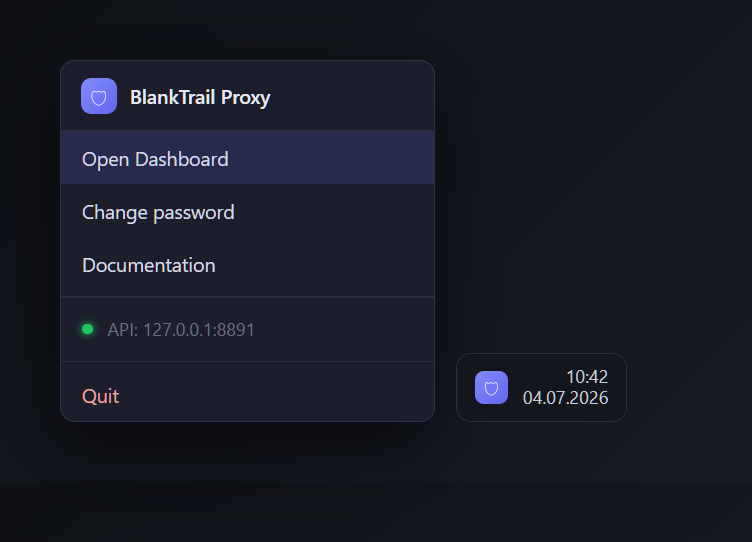
Menu items
Right-click the tray icon to open its menu:
| Item | What it does |
|---|---|
| Open Dashboard | Opens the web dashboard (http://127.0.0.1:8891) in your default browser. |
| Change password | Opens the dashboard's security settings so you can change your password. |
| Documentation | Opens this documentation site in your browser. |
| Status | A read-only line showing the current API address, or "starting…" while the app is coming up. |
| Quit | Closes all ports, stops the proxy and exits the app. |
| TUN helper | The group that manages the privileged interception service: its title shows the state of the service, and its items offer install, start, stop and restart. Details are on the "System traffic interception" page. |
Starting on sign-in
During installation you can enable "Start BlankTrail Proxy on Windows sign-in" so the app is always ready in the tray after you log in. You can also launch it any time from the Start menu.
The “TUN helper” group
A separate group in the same menu manages the interception service — the one that lets a program's or the whole machine's traffic be steered into a port with nothing configured in the application. The group title itself shows the state of the service: not installed, stopped, running, starting, stopping, paused, or state unknown.
Which items are offered depends on the state: a service that is not installed offers only “Install”, a stopped one “Start”, a running one “Stop” and “Restart”. Every action elevates, so Windows shows an administrator prompt; closing it does nothing and reports no error.
- System traffic interceptionWhat the service does, when it is installed, the interception scopes and the API fields.